A CSV-based personalized email sender for Windows
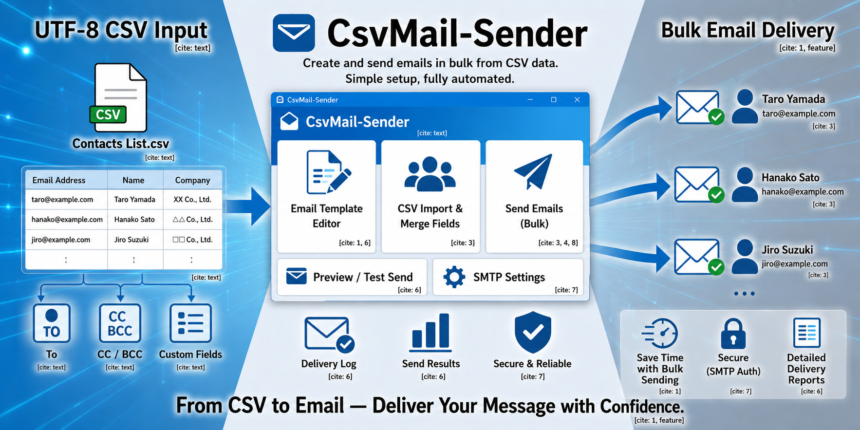
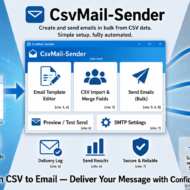
CsvMail Sender is a Windows Forms app for creating and sending personalized emails from CSV data.
It loads one CSV file or a folder of CSV files, replaces template tags with values from each row, lets you preview the generated messages, checks for common problems before sending, and sends selected rows through SMTP.
The app is published as free and open source software on GitHub.
GitHub:
https://github.com/StayHomeLabNet/CsvMail-Sender
Download:
https://github.com/StayHomeLabNet/CsvMail-Sender/releases/
User manual:
https://github.com/StayHomeLabNet/CsvMail-Sender/blob/main/docs/user-manual.en.md
When is CsvMail Sender useful?
1. Sending personalized notices from a CSV list
Many small business tasks start with a simple CSV file.
For example:
- customer notices
- membership renewal reminders
- event announcements
- school or community messages
- internal company notifications
- invoice or payment reminders
- service expiration notices
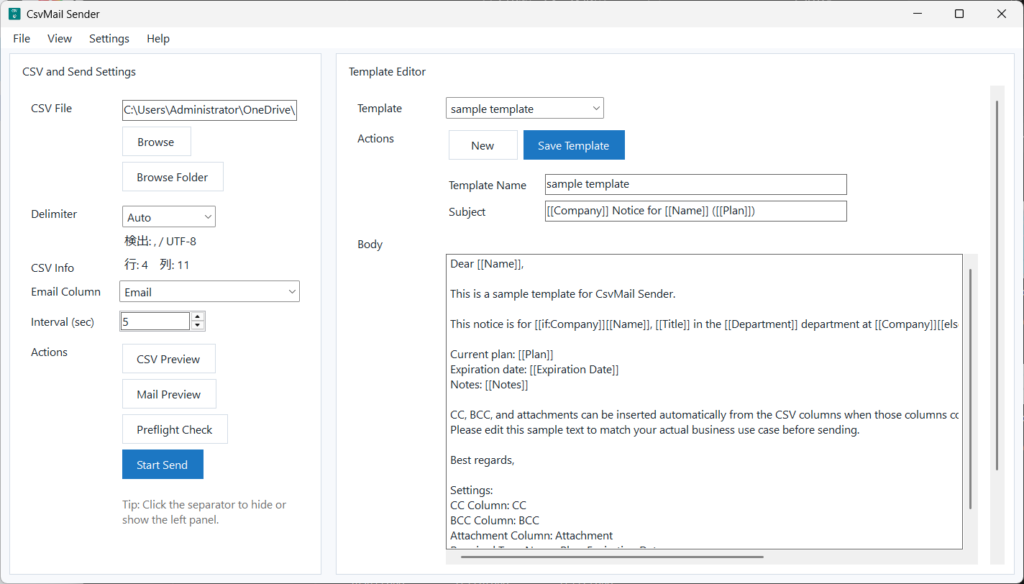
CsvMail Sender lets you use CSV columns such as Name, Company, Plan, or Expiration Date inside the email subject and body.
Example:
Dear [[Name]],

Your current plan is [[Plan]].
The expiration date is [[Expiration Date]].
Each row is turned into a separate message, so the email can feel personal without manually editing every message.
2. Checking emails before sending
Bulk email mistakes can be stressful.
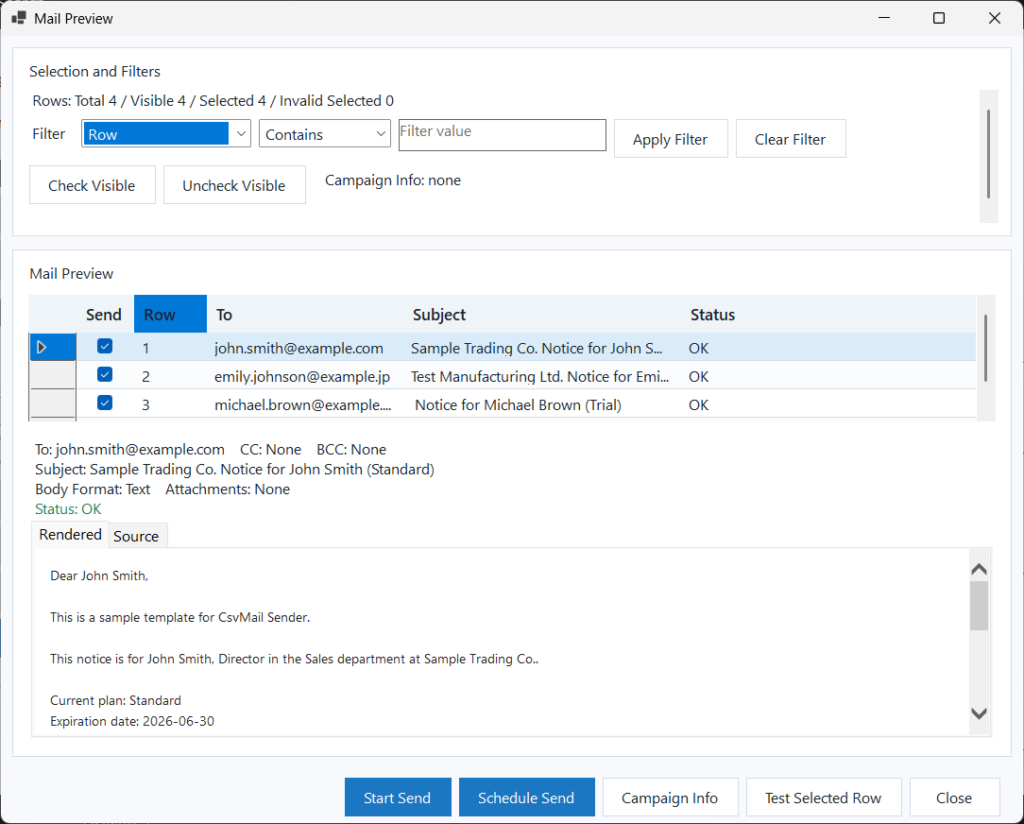
CsvMail Sender includes preview and preflight tools so you can check the contents before sending.
You can confirm:
- whether the correct recipient address is used
- whether template tags are replaced correctly
- whether required fields are missing
- whether attachments exist
- whether there are duplicate addresses
- whether many emails are going to the same domain
This is useful when you want to avoid sending an unfinished template, a missing attachment, or an email to the wrong address.
3. Creating emails with templates
CsvMail Sender supports reusable templates.
You can create an email body once, then use it again with different CSV files.
It supports simple tags such as:
[[Name]]
[[Company]]
[[Plan]]
It also supports conditional template blocks such as:
[[if:Company]]
[[Name]], [[Title]] at [[Company]]
[[else]]
[[Name]], [[Title]]
[[endif]]
This makes it possible to change part of the email depending on whether a CSV field has a value.
4. Sending test emails before the real send
Before sending to all recipients, you can preview the generated message and send a test email.
This is especially useful when checking:
- subject line
- line breaks
- inserted CSV values
- HTML formatting
- attachments
- sender name
- SMTP settings
Instead of sending immediately to everyone, you can test first and reduce the risk of mistakes.
5. Using CC, BCC, and attachments from CSV data
CsvMail Sender can use fixed CC/BCC values or read CC/BCC values from CSV columns.
It can also attach common files or per-row attachments based on a CSV column.
This is useful when each recipient needs a different file, such as:
- a report
- a certificate
- a statement
- an invoice
- a personalized document
6. Managing SMTP settings
CsvMail Sender sends mail through SMTP.
You can manage multiple SMTP profiles and test SMTP sending from the app.
Important SMTP fields include:
- host
- port
- encryption
- user name
- password
- from address
- from name
- test recipient
SMTP passwords are stored locally and are not included when exporting settings.
7. Sending slowly and safely
When sending many emails, sending too quickly can cause problems depending on the mail provider.
CsvMail Sender includes controls such as:
- interval between messages
- per-minute limit
- same-domain wait
- scheduled sending
This helps reduce sending pressure and makes delivery easier to manage.
8. Keeping records after sending
After sending, CsvMail Sender can keep send history and logs.
You can review results, retry failed rows, export results, and open logs.
This is helpful when you need to confirm:
- which rows were sent
- which rows failed
- what error happened
- when the send was completed
- whether a retry is needed
Main features
- Load a single CSV file or a folder of CSV files
- Detect common encodings, including UTF-8, UTF-8 with BOM, and Shift-JIS CP932
- Preview CSV data and generated emails before sending
- Use template tags such as
[[Name]]and[[Plan]] - Use conditional template blocks
- Insert tags from available CSV columns
- Use fixed CC/BCC or CC/BCC columns from the CSV
- Attach common files or per-row files
- Send text or HTML email
- Run preflight checks before sending
- Export dry-run reports as CSV or HTML
- Review a final send summary before sending
- Manage multiple SMTP profiles
- Control send speed
- Schedule sending for a future time
- Review send history and retry failed rows
- Keep template backups, compare versions, and restore old templates
- Switch between English and Japanese UI
- Switch between Basic and Advanced UI modes
- Export and import settings
Cases where it may not be the best fit
CsvMail Sender is not mainly designed for:
- marketing automation with tracking pixels and campaign analytics
- newsletter design with drag-and-drop layouts
- cloud-based team collaboration
- very large-scale email marketing
- sending without an SMTP account
- replacing a professional mailing list service
- bypassing mail provider sending limits
It is best suited for controlled, practical, CSV-based email sending from a Windows environment.
Safety notes
Before sending real emails, it is recommended to:
- check the CSV preview
- check the mail preview
- run the preflight check
- send a test email
- confirm SMTP settings
- review the final send summary
- start with a small test CSV if the data is important
CSV files with duplicate headers are rejected so ambiguous row values cannot be sent silently.
For larger sends, configure the sending interval, per-minute limit, and same-domain wait according to your SMTP provider’s rules.
SMTP provider limits and authentication requirements vary by environment.
Quick start
- Open
Settings > SMTP Settings. - Configure your SMTP profile.
- Click
Browseto load one CSV file, orBrowse Folderto load multiple CSV files. - Select the recipient column in
Email Column. - Open the template editor.
- Create or select an email template.
- Insert CSV tags into the subject or body, such as
[[Name]]. - Click
CSV Previewto check the source data. - Click
Mail Previewto check the generated emails. - Click
Preflight Checkto catch problems before sending. - Send one test row.
- Click
Start Sendand review the final send summary.
In one sentence
CsvMail Sender is a practical Windows tool for turning CSV rows into personalized emails, checking them before sending, and delivering them through SMTP with logs and safety checks.
It is especially useful when you want to send CSV-based notices, reminders, announcements, or per-recipient messages without manually writing each email.
No comments yet.